1. App Navigation
The main sections are easily accessible via the five icons at the bottom of the screen.
2. Home Screen: Your Daily Dashboard
This screen is your central hub for tracking daily habits and viewing your overall performance.
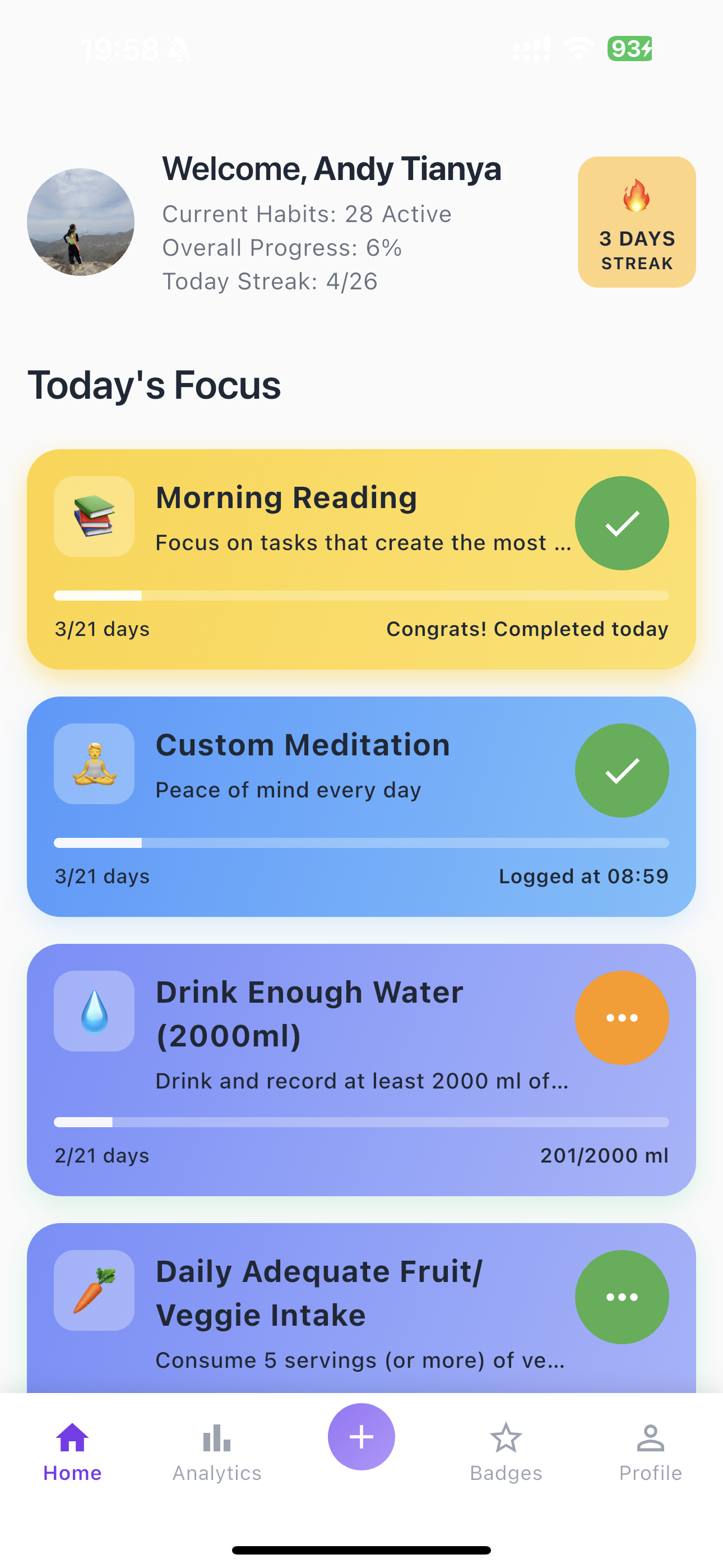
- Welcome Banner: Displays your active habits, overall progress, and today's current streak progress (e.g., "Today Streak: 4/26").
- Current Streak: A visual indicator (e.g., "3 DAYS STREAK") shows your current unbroken chain of successful check-ins.
- Today's Focus: Lists all habits scheduled for the current day. You can see the habit name, progress, and check-in status.
- Checking In: Tap the checkmark or the logging area on a habit card to record your completion for the day.
3. Creating a New Habit (Target)
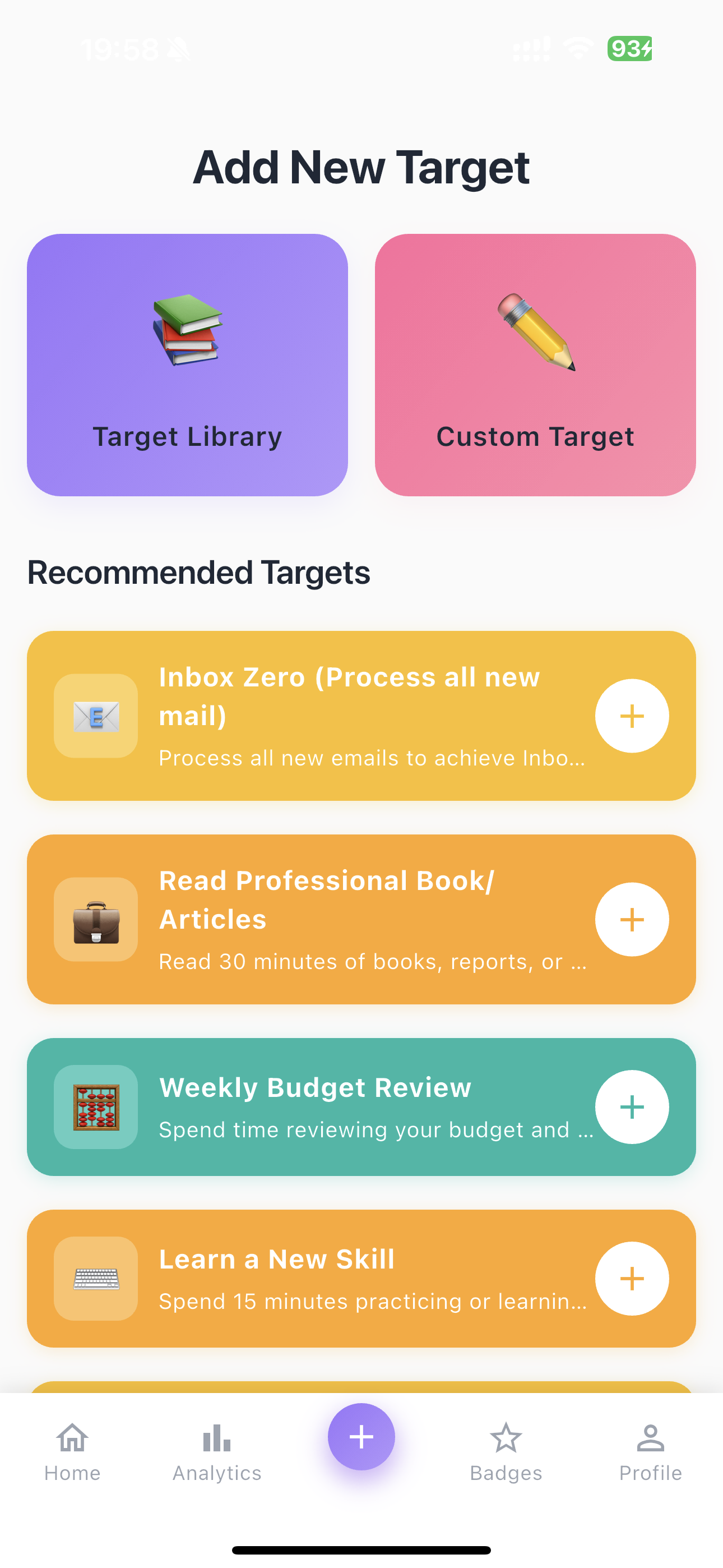
Start building a new habit by tapping the prominent ➕ button in the navigation bar.
3.1 Choosing a Starting Point
When you create a new target, you can choose from predefined templates or customize your own:
- Target Library: Browse and select pre-made habit goals.
- Custom Target: Design a habit from scratch.
- Recommended Targets: Select from suggested goals (e.g., "Inbox Zero," "Weekly Budget Review").
3.2 Selecting a Category
Organize your goals by selecting a category type, such as Productivity & Organization, Finance & Responsibility, or Physical Health & Fitness.

3.3 Customizing Your Target Details
Define the specifics of your new habit goal:
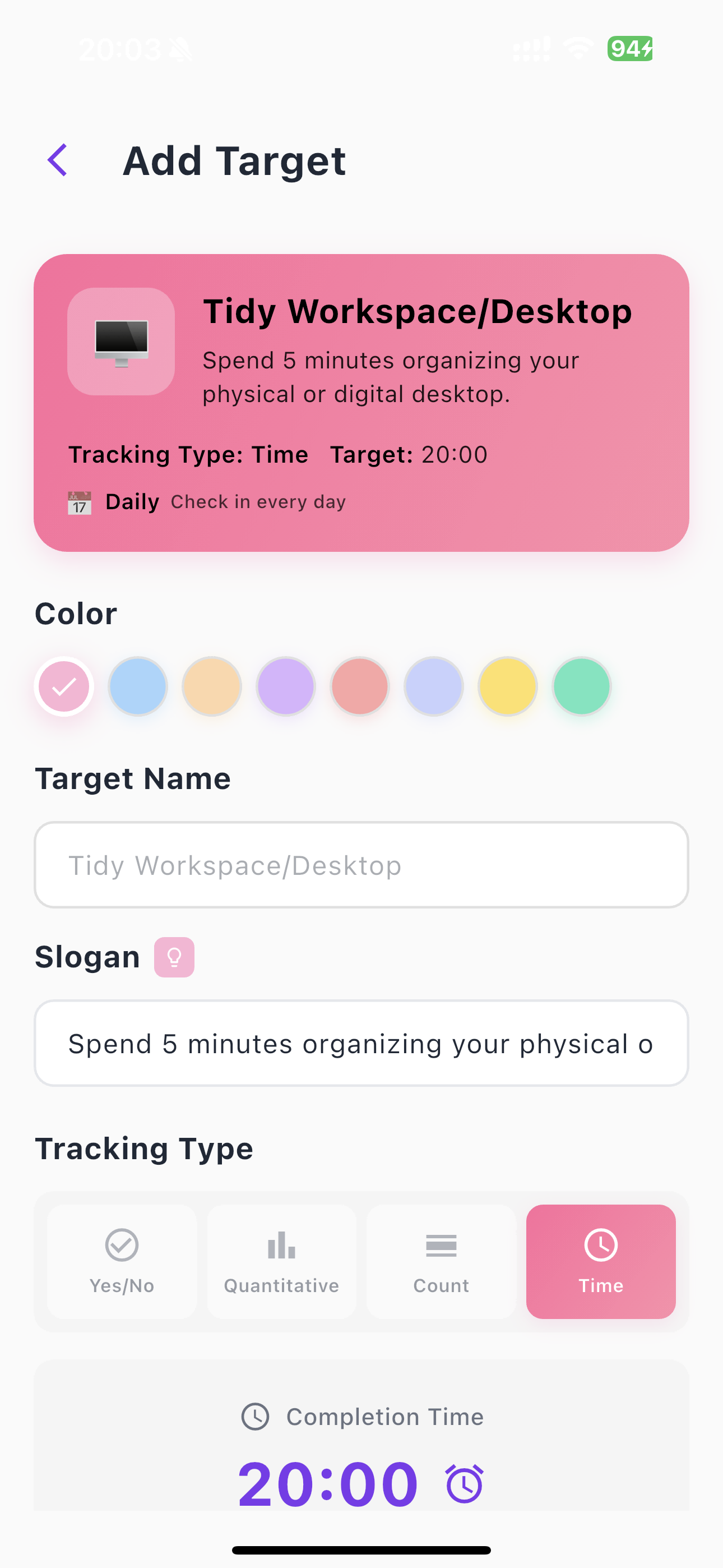
- Color: Choose a color for the habit card for easy visual identification.
- Target Name & Slogan: Give your habit a clear name and a motivational slogan.
- Completion Time: Set the time you plan to complete the habit daily (e.g., "20:00").
- Tracking Type: Define how success is measured (see Section 4).
- Check-in Frequency: Define when you need to check in (Daily, Weekly, or Monthly).
4. Habit Tracking Types
The app supports four primary methods for tracking your progress.

- Yes/No: For simple binary habits (e.g., did you do it or not?).
- Quantitative: For logging numerical data (e.g., track the amount of water you drank).
- Count: For logging specific actions or repetitions.
- Time: For tracking the duration spent on a task.
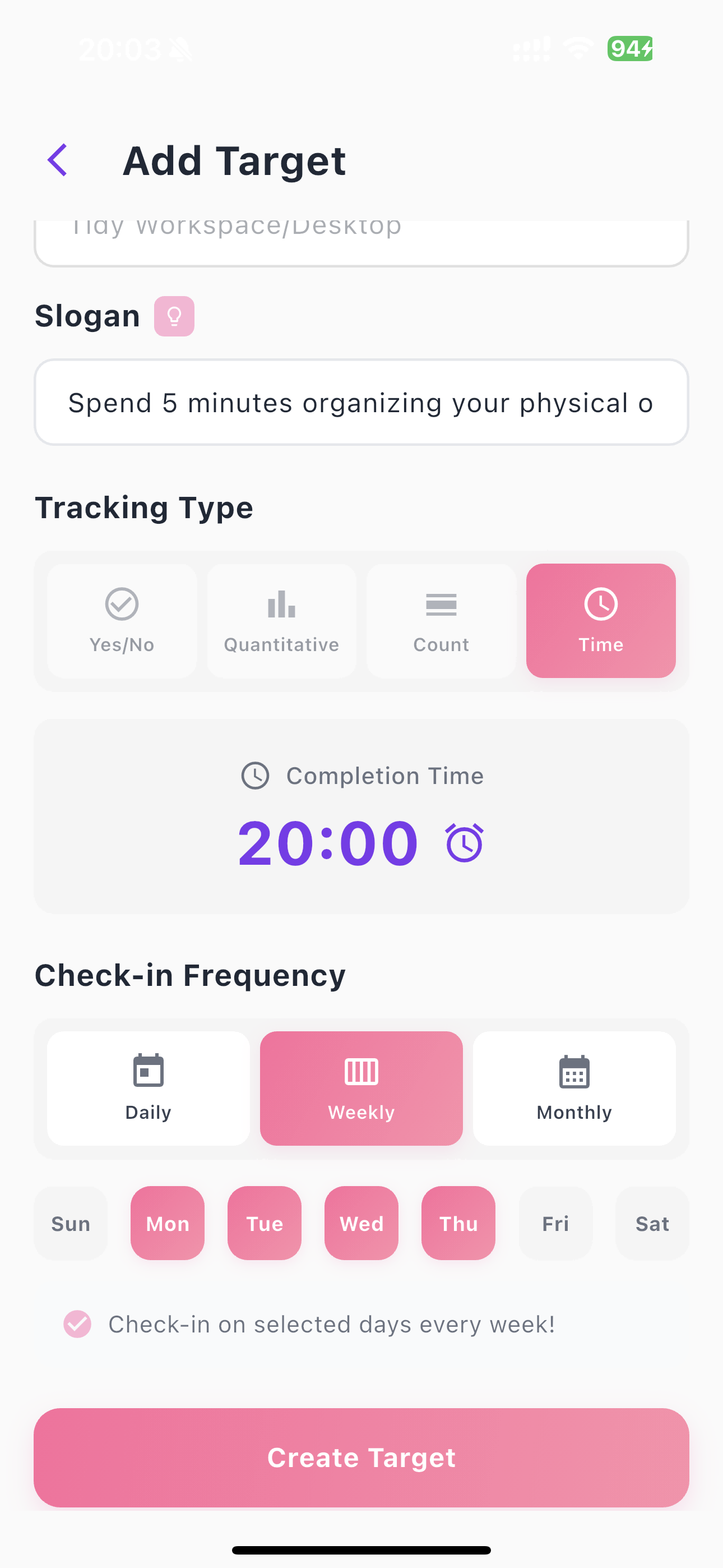
Frequency Selection: For Weekly or Monthly tracking, you can select specific days to check in.
5. Analytics: Reviewing Your Performance
Tap the Analytics tab (📊) to review your long-term success and metrics.
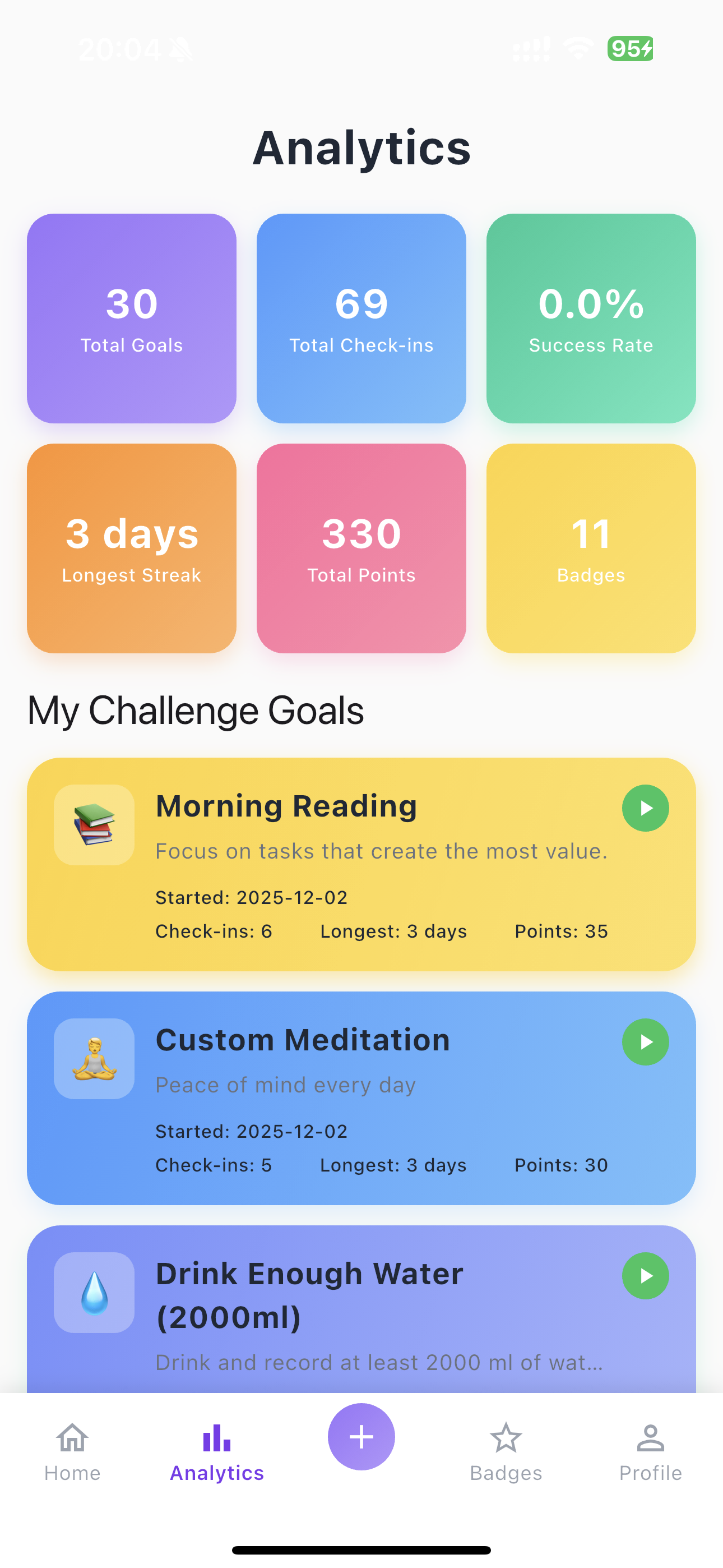
- Summary Metrics: Key performance indicators are displayed prominently: Total Goals, Total Check-ins, Success Rate, Longest Streak, Total Points, and Badges earned.
- My Challenge Goals: Lists your active habits with detailed stats, including the Start Date, check-in count, longest habit streak, and Points earned.
6. Support and Account Management
6.1. Deleting My Account and Data
The App provides a function for permanent user account deletion. You have the right to request the deletion of your account and associated data.
You can request account deletion via the App settings or by emailing our support team.
6.2. Contact Support
If you have any questions, require technical support, or wish to exercise your data rights, please contact the Publisher:
Email: support@dofun.app
Publisher: DoFun Studio